
How To: A Step-by-Step Guide to Using the New Track Upload Feature
Updated March 22, 2011
Yes, track uploads are now available on the platform! Whether you just need to upload a single track or 20 full albums all at once, this new tool has you covered. We can handle as many songs as you want to give us in one simple step-by-step operation. First, we’ll give you some quick highlights and then we’ll show you exactly how it works.
Upload Feature Highlights:
- Upload one song or as many songs as you want all at once.
- Upload multiple formats for each song or ask SourceAudio to automatically create mp3’s, AIFF’s or WAV’s for you – with no additional work for you to do.
- Watch SourceAudio’s smart upload tool read the embedded metadata in each file (whenever present) and intelligently fill in the track information on the site for you.
- Use our batch operations tool at the end of the upload process to edit the metadata on each individual song or for all songs at once before you make them live on your site. This is great if you know you want all songs to belong to one album or a specific label – you tell us to update the whole list and it’s done in one simple command.
- Preview track playback and make sure all your metadata is tightened up before you publish it to the site. Once you publish, we create the waveforms and your new tracks are up and available on your site.
Step-by-step guide to using the new feature:
<br>
» Step 1: Go to the new “Upload Tracks” section of your Admin Panel
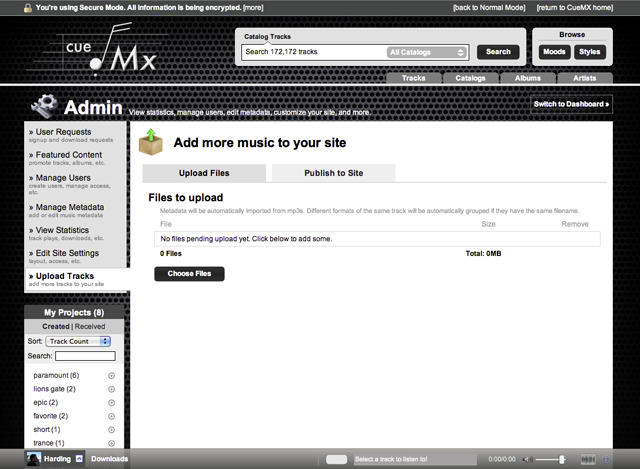
Here's what you'll see when you get to the new Upload Tracks section.
» Step 2: Click the “Choose Files” button and select all of the songs you want to upload
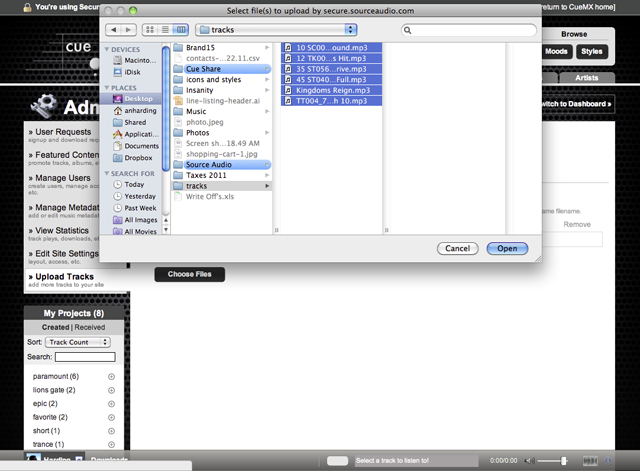
Use your keyboard commands (hold down shift) to select a full list of songs to upload. Or you can go one track at a time - it's up to you.
» Step 3: SourceAudio will read your metadata embedded in the files, prepare them for upload, and you just need to click “Start Upload” to proceed
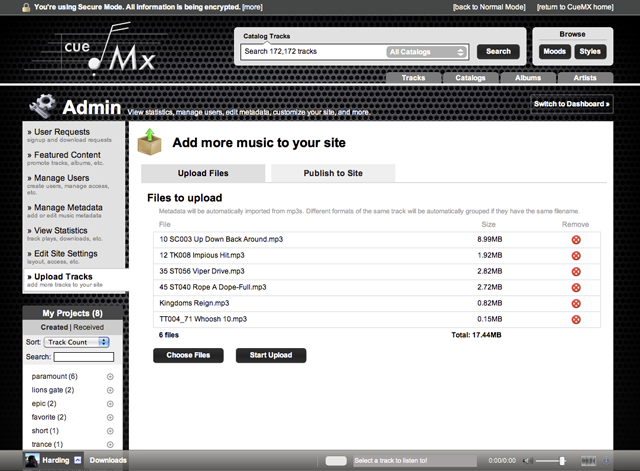
You can also add more tracks to this upload batch or remove individual tracks in this step before you proceed.
» Step 4: Sit back and watch your upload progress
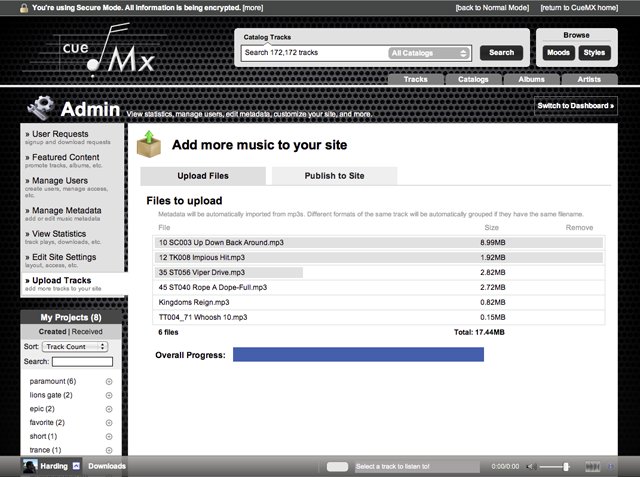
We'll show you the progress for individual tracks as well as the overall batch progress as a whole. Be patient, we'll tell you when it's done!
» Step 5: Your upload is complete, now move on to the next step
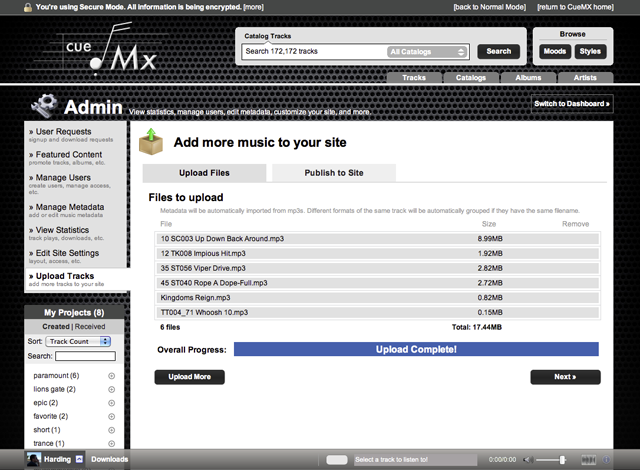
» Step 6 (Final Step): Edit metadata on one or more tracks at a time, attach alternate file formats to your tracks – or tell SourceAudio to auto-generate them for you – and then publish your tracks to your live site!
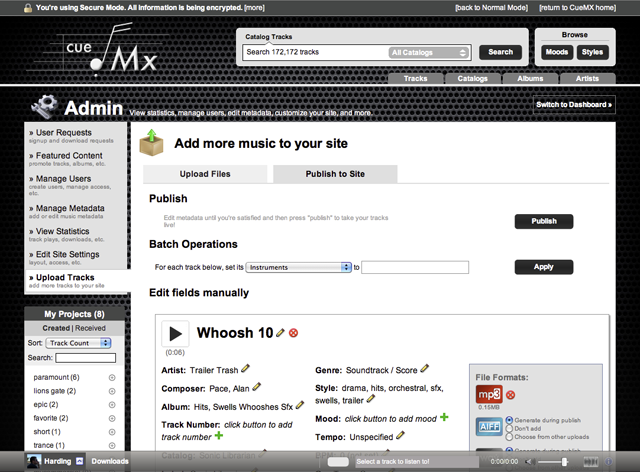
Now go give it a shot, it’s super easy to use, extremely powerful, and will make your life of managing tracks, versions, metadata, and search & distribution a whole lot easier!



The Brief Inbox is officially live in your SourceAudio workspace!
It’s a new, shared workflow designed to make briefing, pitching, and licensing clearer on both sides of the process. Networks and production teams can request music more efficiently, and catalogs can respond with focused, relevant pit...[ READ MORE ]


Your SourceAudio June Recap: Ethical AI, Real Revenue & What’s Coming Next
It’s been a huge month. Here's a quick look at how we're pushing the industry forward. Ethically, strategically, and always with creators at the core. New: AI Dataset Licensing Marketplace We launched the first scalable, fully clea...[ READ MORE ]



SourceAudio Celebrates Record-Breaking 2024
As we wrap up 2024, SourceAudio has solidified its position as the system of record and single source of truth for the music licensing industry. Through unprecedented growth and democratization of cutting-edge music technology tools, our p...[ READ MORE ]