
A Complete Guide to Track Artwork
Updated May 20, 2022
Whether you want to apply artwork to all your tracks or just a few, our interface makes it easy!
Assigning Artwork
Artwork application is built on the SourceAudio organizational hierarchy of catalogs, labels, and albums.
Catalogs are the broadest organizational level, so if there isn’t any artwork applied to a given track on an album or label level, this artwork will be applied. You can view your catalogs at the link that looks like https://yoursite.sourceadio.com/catalogs, click “Detailed” for the view setting seen across the top of the page just below the nav tabs, and change any catalog’s artwork by clicking “Edit This Catalog” on the right end of the catalog listing.
Labels live within catalogs, so as described above, if you haven’t applied artwork to a label, it will inherit the artwork from the catalog it’s contained in. If you apply different artwork to a label, that artwork will be applied to all the material in that label that would otherwise receive the catalog’s artwork (provided the tracks aren’t receiving artwork on the album level). You can view your catalogs at the link that looks like https://yoursite.sourceadio.com/labels, click “Detailed” for the view setting seen across the top of the page just below the nav tabs, and change any label’s artwork by clicking “Edit This Label” on the right end of the catalog listing.
Finally, albums, which exist within labels, are the most specific organizational level, so artwork applied to any albums (once that album data is in place) will overwrite any artwork that would otherwise be applied from the catalog or label’s artwork. You can view your catalogs at the link that looks like https://yoursite.sourceadio.com/albums, click “Detailed” for the view setting seen across the top of the page just below the nav tabs, and change any album’s artwork by clicking “Edit This Album” on the right end of the catalog listing.
Downloading Tracks with Embedded Artwork
Your tracks will be downloaded with their assigned artwork as long as you have metadata injection engaged for that specific label. You can view and adjust this setting in Manage Metadata > Downloading > Metadata injection.
Delivering Artwork as Image Files
You can deliver image files of your tracks’ artwork using the file delivery tool. This setting is found on the second page of settings when formatting your delivery. Just tick the box for Album Art, and then use the Album Art Filenames tool to set the naming protocol for these files (which draws from album metadata fields), as well as their folder organization for how they will accompany the audio files.

How Music For Sport runs a 180-album catalog across territories
Music For Sport has supplied music to every Summer and Winter Olympic Games since 1992. More than three decades and 180-plus albums later, the UK company's job hasn't changed: put high-quality production music in front of broadcas...[ READ MORE ]


YouTube Shorts monetization is now live. Here's what else is new in June.
June was a build-heavy month across our licensing, YouTube, and Collect businesses. We launched a major upgrade to our music-monitoring service, invested in faster and more accurate royalty processing, moved several enterprise integrations...[ READ MORE ]
The operational side of maximizing catalog revenue
One of the clearest indicators of long-term catalog health is whether there’s a real system of record behind it. By that we mean: a single place where the rest of the business can quickly confirm what a work is, who owns it, what iden...[ READ MORE ]

May at a Glance: A Product Update, the Brief Inbox, and a New AI Podcast
The Brief Inbox didn't slow down in May, and neither did we. Column customization shipped, and Drew made an appearance on Morning Brew's new AI podcast to talk music and AI. Drew on The Intelligence Shift Drew Silverstein, our Presid...[ READ MORE ]

Why Brands Are Moving Toward Aggregator-Driven Music Licensing
The way music gets licensed for advertising is changing at the infrastructure level. More brands and agencies are moving toward aggregator-driven ecosystems, where platforms like SourceAudio plug directly into proprietary music discover...[ READ MORE ]

April Recap: Luminate Summit, Blog Post, and What's Coming Through the Brief Inbox
Andrew Talks AI Training Data at Luminate Summit On April 15, SourceAudio CEO and co-founder Andrew Harding joined Doug Shapiro, Dave Davis, Dustin Blank, and Matthew Adell on "The AI Training Data Economy" panel at the Luminate Dat...[ READ MORE ]
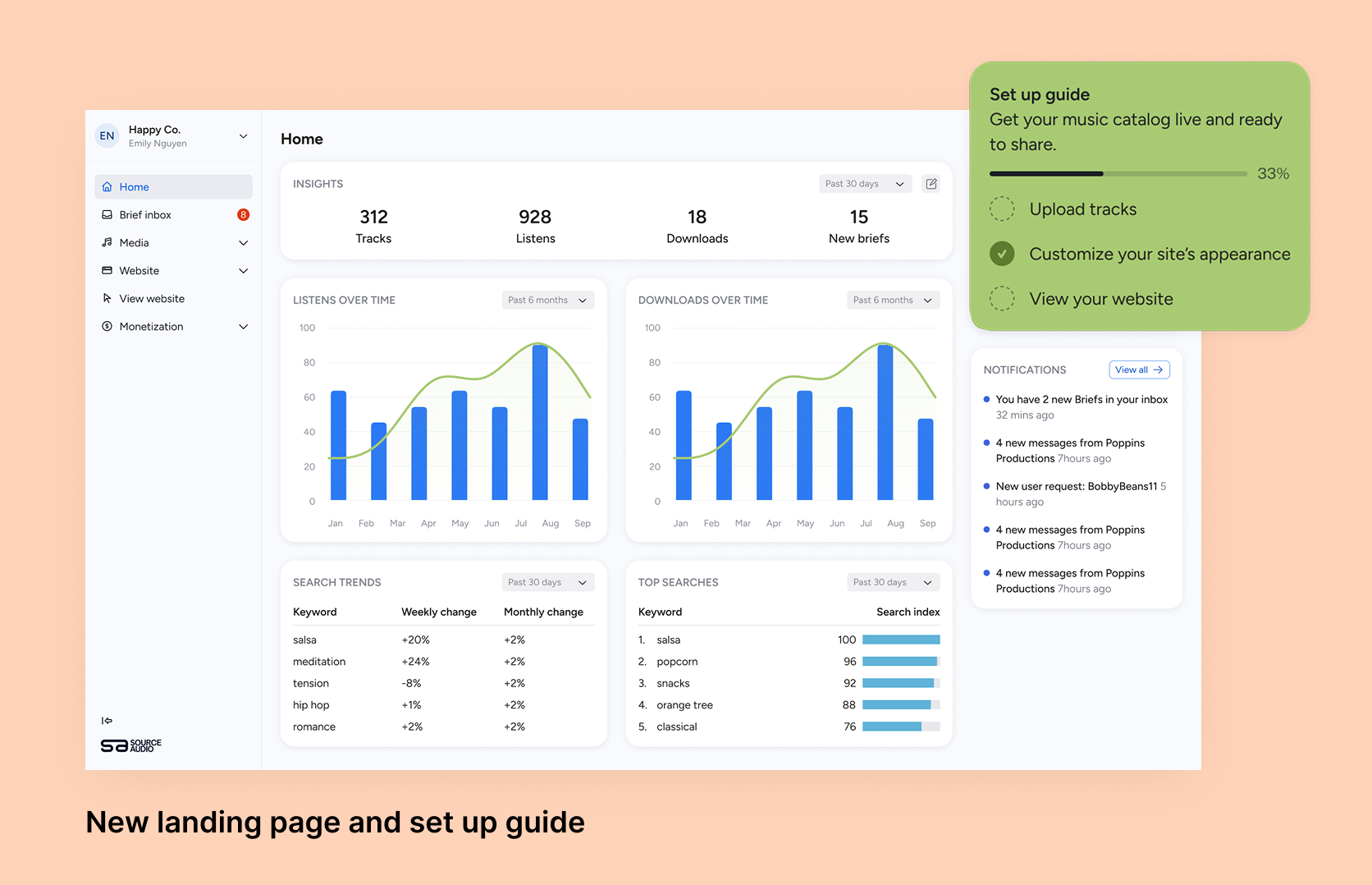
Fixing Foundations: How I restructured SourceAudio to be more intuitive for admins, new and old
For over a decade, SourceAudio has been adding features, expanding its reach, and growing alongside the music licensing industry. While our toolset has proven valuable to our client base, it’s important to acknowledge weaknesses that hav...[ READ MORE ]